
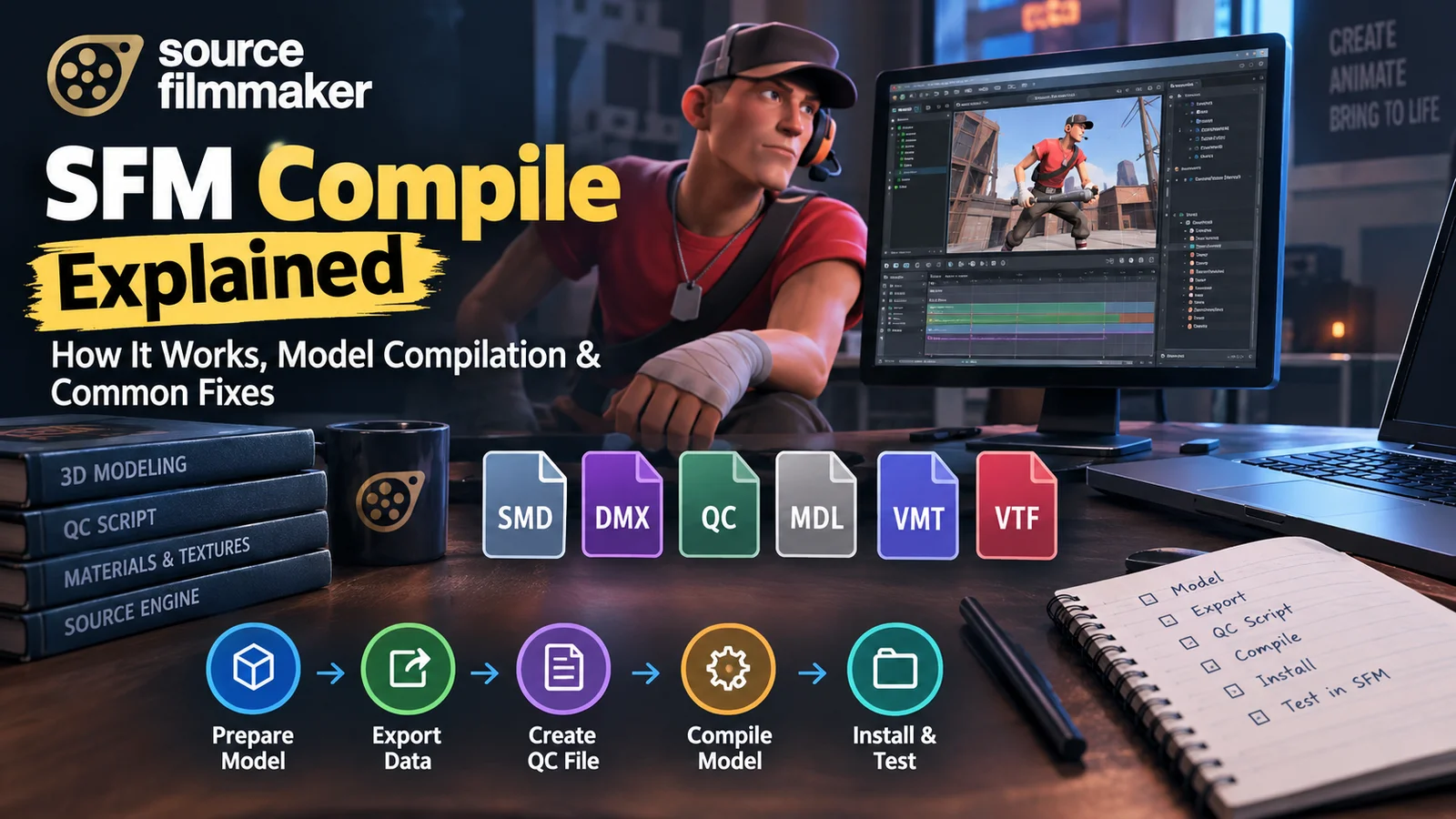
Creating custom models for Source Filmmaker opens up a world of creative possibilities. You can build original characters, design unique props, customize existing assets, and bring your own ideas into animated scenes. However, before you can use many custom models in your projects, you need to understand how model compilation works.
That’s where SFM compile becomes important.
Model compilation connects your 3D modeling work with the Source engine. It transforms prepared model files into a format that the original Source Filmmaker can load and use. Although the process might seem complicated at first, the right tools and a well-organized workflow make it much easier.
Whether you’re a beginner learning to import your first custom character or an experienced creator developing detailed assets, understanding the compilation process can save hours of troubleshooting.
This guide explains everything you need to know, including the role of QC files, Crowbar, Studiomdl, Blender, SMD and DMX files, materials, textures, and common compilation errors. You’ll also learn how to prepare models, configure your files, compile assets, and test the results inside Source Filmmaker.
Let’s start with the basics.
What Is SFM Compile?
SFM compile refers to the process of preparing and converting 3D model source files into compiled model assets that the original Source Filmmaker can use.
Source Filmmaker, commonly called SFM, is Valve’s animation and filmmaking application built on the original Source engine. It allows creators to arrange characters, control animations, position cameras, adjust lighting, and produce cinematic scenes.
However, a 3D model created in Blender or another modeling application doesn’t automatically work in SFM. The model needs the correct structure, materials, skeleton information, and compatible file formats.
Compilation brings these elements together.
For example, imagine you’ve created a custom robot character in Blender. You have the mesh, skeleton, textures, and animation data. SFM cannot simply treat that entire Blender project as a finished Source model. You must export the necessary information, prepare a QC script, and run the appropriate Source model compiler.
The compiler processes those instructions and generates the model files required by the engine.
Understanding the SFM Model Compilation Process
The compilation workflow generally involves four main components:
- Source files: These contain the model geometry, skeleton, animations, and other necessary data.
- QC file: This text-based configuration file tells the compiler how to assemble the model.
- Studiomdl: Valve’s Source model compiler processes the QC instructions and source assets.
- Crowbar: This graphical utility provides a convenient interface for running the compiler and managing model files.
A successful compilation typically generates an MDL file and supporting files such as VVD and VTX data. Models with collision definitions may also generate a PHY file.
These files work together. The MDL file contains important model information while its supporting files provide additional geometry, vertex, rendering, and physics data.
How SFM Compile Works Behind the Scenes
The process begins when you prepare a model and export it into a compatible format.
Depending on your workflow and compiler version, you might use SMD or DMX files. These formats preserve information needed to reconstruct the model inside the Source engine.
Next, the QC file identifies the relevant source assets and describes how the compiler should assemble them. It can define the output model name, material directory, reference geometry, animations, collision settings, and other model properties.
When you start compilation, Studiomdl reads the QC file and processes the referenced assets.
If everything is configured correctly, it generates the compiled model files. If a required file is missing or a command contains an error, the compiler reports the problem in its output log.
Think of the QC file as a construction plan and Studiomdl as the builder. The source files provide the materials while the compiler follows the instructions to create the finished asset.
Why Source Filmmaker Users Need Model Compilation
Custom model compilation gives creators more control over their animation projects.
Some common uses include:
- Custom characters: Build original characters with unique appearances and skeletons.
- Props: Create furniture, weapons, tools, machines, and decorative objects.
- Environmental assets: Prepare buildings, scenery, and other objects for animated scenes.
- Model modifications: Edit compatible existing models and rebuild them.
- Animation support: Prepare skeletons and animation sequences for use in SFM.
- Creative experimentation: Test different shapes, materials, textures, and model configurations.
Without a suitable compilation workflow, importing original custom assets into the Source engine can become difficult.
How SFM Model Compilation Works
Before compiling anything, it’s worth understanding the file structure. Many compilation problems happen because creators don’t know which files belong together or what each one does.
Understanding Source Files and Compiled Model Files
A typical Source model project contains several file types. Each serves a different purpose.
| File extension | Purpose |
|---|---|
.smd |
Stores model geometry, skeleton information, or animation data |
.dmx |
Stores model, skeleton, animation, and other supported asset data |
.qc |
Contains model compilation instructions |
.mdl |
Main compiled model file |
.vvd |
Stores vertex data |
.vtx |
Stores compiled mesh and rendering-related data |
.phy |
Contains compiled physics information when generated |
.vmt |
Defines material properties |
.vtf |
Stores Source-compatible texture data |
.vta |
Stores vertex animation data used in supported workflows |
Not every project requires every file. For instance, a simple static prop might not need character animations or facial flexes. A complex character, however, may require several source files and additional animation information.
It’s also important to remember that SMD and DMX aren’t interchangeable in every workflow. The compiler and exporter must support the format you’re using.
The Role of QC Files in SFM Compile
A QC file is one of the most important parts of the Source Filmmaker compilation process.
It’s a plain-text script containing instructions that tell Studiomdl how to build a model. You can create or edit it using a text editor such as Notepad++, Visual Studio Code, or another suitable application.
A QC file commonly defines:
- The final model name and output location.
- Reference geometry.
- Material search directories.
- Animation sequences.
- Collision geometry.
- Surface properties.
- Model-specific settings.
For example, consider this command:
$modelname "custom/robot/robot.mdl"
It tells the compiler which model path and filename to use for the output.
Another command:
$cdmaterials "models/custom/robot"
Identifies the material directory relative to the game’s materials folder.
Incorrect paths can prevent textures from appearing even when the model itself compiles successfully.
What Happens When You Compile an SFM Model?
The process follows a logical sequence:
- Prepare the geometry, skeleton, and textures.
- Export the required source files.
- Create a QC file with the correct commands.
- Configure the appropriate Source compiler.
- Run Studiomdl through Crowbar or another supported method.
- Review the compilation log.
- Locate the generated model files.
- Install the assets in the correct SFM directories.
- Load the model and test its appearance and functionality.
Each stage depends on the previous one. If your exported skeleton contains errors, for example, changing the material directory won’t fix the underlying problem.
Essential Tools for SFM Compile
A reliable model compilation setup doesn’t require dozens of expensive applications. Several free tools cover most of the essential tasks.
Crowbar: A Popular Tool for Source Filmmaker Compile
<PRIVATE_PERSON>
Crowbar is a widely used Source engine modding utility that provides a graphical interface for model compilation and decompilation.
One of its biggest advantages is that you don’t need to manually enter every compiler command into a terminal. Instead, you can select a QC file, choose the appropriate game configuration, configure the output directory, and start the process through its interface.
Crowbar supports several useful operations:
- Compile models.
- Decompile compatible compiled models.
- View compilation logs.
- Process multiple QC files.
- Select different game compiler configurations.
- Choose custom output directories.
- Inspect model files through supported viewing tools.
One detail matters: Crowbar doesn’t perform the actual model compilation itself. It launches the selected game’s Studiomdl compiler and manages the surrounding workflow.
That distinction becomes important when you’re troubleshooting compatibility problems. A model that fails to compile might have a QC error, an incompatible source file, or an incorrect compiler configuration.
Official community resources: SFMcompile.
Studiomdl.exe: The Source Model Compiler
Studiomdl.exe is the actual model compiler used in traditional Source engine workflows.
It reads the QC script, locates the referenced source files, processes the model information, and generates compiled assets.
Different Source engine branches and games may provide different compiler versions. Therefore, selecting a compatible compiler is essential.
For example, a model intended for one Source game might use commands or features that another game’s compiler doesn’t support. Even though both applications use the Source engine family, their model formats and compiler behavior can differ.
When using Crowbar, make sure its game configuration points to the intended compiler.
Blender and Other 3D Modeling Tools
Blender is a popular choice for creating custom models because it offers powerful modeling, rigging, UV mapping, and animation features.
However, exporting a model for Source Filmmaker requires more than saving a normal Blender project.
You need to prepare:
- Correct mesh geometry.
- A compatible skeleton.
- Proper bone weights.
- Suitable UV coordinates.
- Material assignments.
- Correct scale and orientation.
- Supported export data.
The Blender Source Tools help creators work with Source model formats such as SMD and DMX.
Other modeling applications can also work when they provide compatible exporters.
VTFEdit and Texture Tools
Source models use a material system that separates material definitions from image textures.
A VMT file describes how a material behaves. A VTF file stores the actual texture information in Valve’s texture format.
For example, a character might have separate materials for its body, clothing, eyes, and accessories. Each material can reference a different texture.
VTFEdit and compatible texture tools help convert and prepare image files for Source engine workflows.
Before compiling your model, check that:
- Texture files use supported formats.
- VMT files reference the correct VTF files.
- Material paths match the QC configuration.
- Texture names match the material references.
- The required files are available in the correct folders.
A model can compile successfully while displaying missing textures. That’s why material testing deserves separate attention.
How to SFM Compile a Model Step by Step
Now let’s move from theory to practice. The following workflow demonstrates how to prepare and compile a basic custom model for the original Source Filmmaker.
For this example, assume you’ve created a simple robot character in Blender.
Step 1: Prepare Your Model for SFM Compile
Start by checking your model before exporting it.
A poorly prepared model can create problems throughout the compilation process. Missing bones, incorrect mesh assignments, unusual scale values, and broken UV maps can all affect the final result.
Begin with these checks:
- Remove unnecessary geometry.
- Apply or verify appropriate object transformations.
- Check the model’s orientation.
- Confirm that the skeleton works correctly.
- Verify that mesh vertices have suitable bone weights.
- Check UV mapping and material assignments.
- Separate components if your model requires bodygroups.
For animated characters, the skeleton deserves particular attention. Bone names, hierarchy, reference pose, and weighting should match the intended animation workflow.
A static prop doesn’t require the same skeletal setup as a fully animated character.
Step 2: Export Your Model as an SMD or DMX File
Once the model is ready, export it using a compatible Source exporter.
SMD is a widely used format for Source model workflows. DMX is another supported format in certain compiler branches and workflows.
Your export settings should preserve the information needed by the compiler.
For a basic character, you may need:
- A reference mesh file.
- A skeleton.
- Animation files if the character uses custom sequences.
- Additional files for supported flexes or other model features.
For example, you might organize the project like this:
RobotProject/
│
├── robot.qc
│
├── models/
│   └── robot_reference.smd
│
├── animations/
│   ├── idle.smd
│   └── walk.smd
│
└── materials/
    ├── robot_body.vmt
    └── robot_body.vtf
This is an illustrative working structure. Your actual paths must match the commands inside the QC file and the compiler’s expected directory structure.
Step 3: Create and Configure the QC File
Create a new text file and save it with a .qc extension.
A basic QC file for a simple animated character might look like this:
$modelname "custom/robot/robot.mdl"

$body "body" "robot_reference.smd"

$cdmaterials "models/custom/robot"

$surfaceprop "metal"

$sequence "idle" "idle.smd" fps 30

$sequence "walk" "walk.smd" fps 30
This example assumes the referenced source files and material directories are prepared correctly. It also assumes the animation files use a compatible skeleton.
Here’s what the commands do:
| QC command | Explanation |
|---|---|
$modelname |
Defines the output model path and filename |
$body |
Identifies reference geometry for the model |
$cdmaterials |
Defines the material search directory |
$surfaceprop |
Sets a surface property |
$sequence |
Defines an animation sequence |
You may need additional commands for bodygroups, collision geometry, attachments, flexes, or other model features.
Important: This is a starting example, not a universal QC template. Different model types need different instructions.
Step 4: Set Up Crowbar for SFM Compile
Open Crowbar and configure it to use the original Source Filmmaker model compiler.
The general process is:
- Open Crowbar.
- Locate the game setup or configuration section.
- Select Source Filmmaker.
- Verify the SFM installation directory.
- Check that the selected compiler points to the intended
studiomdl.exe. - Open the Compile tab.
- Select your QC file.
- Choose a suitable output directory.
- Enable compile logging if available.
Don’t assume that selecting a game name automatically guarantees the correct compiler. Verify the actual path.
This is especially important when multiple Source games or SDK installations exist on the same computer.
Step 5: Compile the Model Using Crowbar
Once your files and settings are ready, start the compilation process.
Crowbar passes the QC file to Studiomdl and displays the compiler output.
During this stage, the compiler checks the instructions and processes the referenced model data.
If compilation succeeds, you should find the generated files in your selected output directory.
For a typical model, these may include:
robot.mdlrobot.vvd- One or more
.vtxfiles. robot.phyif collision information was compiled.
The exact output depends on the compiler and model configuration.
If compilation fails, don’t immediately rewrite the entire QC file. Read the log and identify the first meaningful error. It often points directly to the missing file, unsupported command, or incorrect configuration.
Step 6: Install the Compiled Model in Source Filmmaker
After successful compilation, place the model files in the appropriate SFM game content directory.
For a typical Source Filmmaker installation, custom assets are commonly placed inside:
SourceFilmmaker/
└── game/
    └── usermod/
        ├── models/
        │   └── custom/
        │       └── robot/
        │           ├── robot.mdl
        │           ├── robot.vvd
        │           └── robot.dx90.vtx
        │
        └── materials/
            └── models/
                └── custom/
                    └── robot/
                        ├── robot_body.vmt
                        └── robot_body.vtf
The example shows a possible organization, not a mandatory universal structure. Your actual VTX filename and other generated files may differ.
Keep the compiled model files together. Also make sure your material directory matches the $cdmaterials path and the references inside your VMT files.
If SFM is already running, restart it when necessary so the application can recognize newly installed assets.
Step 7: Test Your SFM Compile Results
Open Source Filmmaker and locate your custom model through the model browser.
Load it into a test scene and inspect it carefully.
Check the following:
- Does the model appear?
- Are the textures visible?
- Does the model have the correct proportions?
- Are the materials displaying correctly?
- Does the skeleton behave as expected?
- Do the animation sequences work?
- Are there strange shadows or broken surfaces?
- Does the model remain stable when moved or animated?
Don’t rush into a complex animation before testing the asset. A five-minute inspection can prevent hours of reworking a finished scene.
SFM Compile QC File Example: Commands You Should Understand
QC files control many aspects of Source model compilation. Understanding their commands makes troubleshooting much easier.
Understanding Common QC Commands
Here are several commands you’ll encounter in Source Filmmaker workflows:
| Command | Function |
|---|---|
$modelname |
Sets the compiled model’s name and output path |
$body |
Defines model geometry |
$bodygroup |
Creates selectable model components |
$cdmaterials |
Sets the material search path |
$sequence |
Defines an animation sequence |
$surfaceprop |
Assigns surface properties |
$collisionmodel |
Defines collision geometry |
$definebone |
Defines additional bone information |
$include |
Includes another QC or compatible script file |
Each command has its own syntax and requirements. Always check the documentation for the specific compiler you’re using.
Understanding Bodygroups in SFM Compile
Bodygroups let creators define alternative model components.
For example, imagine a character with three possible accessories: a helmet, glasses, and a backpack. Instead of creating three entirely separate models, you can use bodygroups to organize selectable components.
A simplified QC example looks like this:
$bodygroup "accessory"
{
    studio "helmet.smd"
    studio "glasses.smd"
    blank
}
The actual design of your bodygroups depends on how the model is constructed. Each option should be prepared with the appropriate geometry and configuration.
Understanding Animation Sequences
The $sequence command defines animations that the compiled model can use.
A basic example is:
$sequence "idle" "idle.smd" fps 30This tells the compiler to create an animation sequence named idle using the specified animation file.
For a character with multiple animations, you might define idle, walking, running, and other movements.
However, animation source files must use a compatible skeleton. Simply naming a file walk.smd doesn’t guarantee that it will animate correctly.
Common QC File Mistakes
Watch for these problems:
- Incorrect filenames.
- Missing quotation marks.
- Incorrect relative paths.
- Unsupported compiler commands.
- Incorrect material directories.
- Animation files with incompatible skeletons.
- Missing reference geometry.
- Invalid collision settings.
One useful habit is to keep the QC file readable. Put related commands together and use comments to explain unusual settings. A clean configuration is easier to maintain and troubleshoot.
Common SFM Compile Errors and Their Solutions
Even experienced creators encounter compilation problems. The key is to identify the cause rather than repeatedly changing random settings.
SFM Compile Failed: Unable to Load the QC File
This problem usually occurs when the compiler cannot locate or read the specified QC file.
Possible causes include:
- The QC file path is incorrect.
- The file has an unexpected extension.
- The selected folder is wrong.
- The file contains syntax problems.
- The compiler cannot access the required directory.
How to fix it:
- Open the project folder.
- Confirm that the QC file exists.
- Check its actual extension.
- Open it in a text editor.
- Verify that referenced source files are available.
- Select the correct QC file in Crowbar.
- Try compiling again.
Also check whether Windows has accidentally saved the file as robot.qc.txt.
Studiomdl.exe Errors During SFM Compile
Studiomdl errors can originate from several different problems.
For example, a compiler may report that it cannot open a source file. This often means the filename or directory inside the QC file doesn’t match the actual location.
Other errors can involve unsupported commands, incorrect model structures, or incompatible compiler versions.
The best troubleshooting approach is to:
- Read the complete compiler log.
- Find the first fatal error.
- Check the file or command mentioned.
- Verify that the selected compiler supports the workflow.
- Correct one problem at a time.
- Run the compilation again.
Don’t ignore warnings automatically. Some warnings are harmless while others indicate problems that could affect the finished model.
Missing Textures After SFM Model Compilation
Missing textures are among the most frustrating problems for new SFM creators.
A model might compile without errors but appear purple and black inside the application. This usually indicates that the engine cannot find or properly load the required material or texture.
Remember the difference:
- VMT files define materials.
- VTF files contain texture data.
- The QC file points the compiler toward material directories.
- The VMT file identifies the texture it needs.
For example, a VMT file might contain:
"VertexLitGeneric"
{
    "$basetexture" "models/custom/robot/robot_body"
}
The corresponding texture should exist at the matching location:
materials/models/custom/robot/robot_body.vtfThe material filename and texture reference must match. Check capitalization and directory names as well.
Model Appears Invisible or Broken in Source Filmmaker
If your model compiles but doesn’t display correctly, inspect its geometry and installation.
Potential causes include:
- Missing compiled supporting files.
- Incorrect model paths.
- Broken mesh geometry.
- Incorrect normals.
- Invalid material references.
- Export problems.
- Incorrect model orientation.
Try opening the compiled model in a compatible Source model viewer if one is available.
This can help you determine whether the problem comes from the compiled asset itself or its installation inside SFM.
SFM Compile Errors Caused by Incorrect Bone Structures
Character models require careful skeleton preparation.
A skeleton contains a hierarchy of bones that controls how the model moves. If the reference geometry and animation files use incompatible skeletons, the result can include distorted limbs, unexpected rotations, or failed animations.
Check:
- Bone names.
- Bone hierarchy.
- Reference pose.
- Vertex weights.
- Animation skeleton compatibility.
- Export settings.
For example, if an animation expects a bone named ValveBiped.Bip01_Spine, but your model uses an unrelated name, the animation may not behave as intended.
The correct solution depends on the model’s intended rig and animation system.
How to Read SFM Compile Logs
Compiler logs are more useful than they might initially appear.
Instead of focusing only on the final failure message, read the output from the beginning.
Look for:
- The QC file being processed.
- The compiler being used.
- Source files being loaded.
- Material paths.
- Warnings.
- Fatal errors.
- Final compilation status.
A practical rule is to investigate the earliest meaningful error first. Later messages may simply be consequences of the original problem.
 IQnewswire