
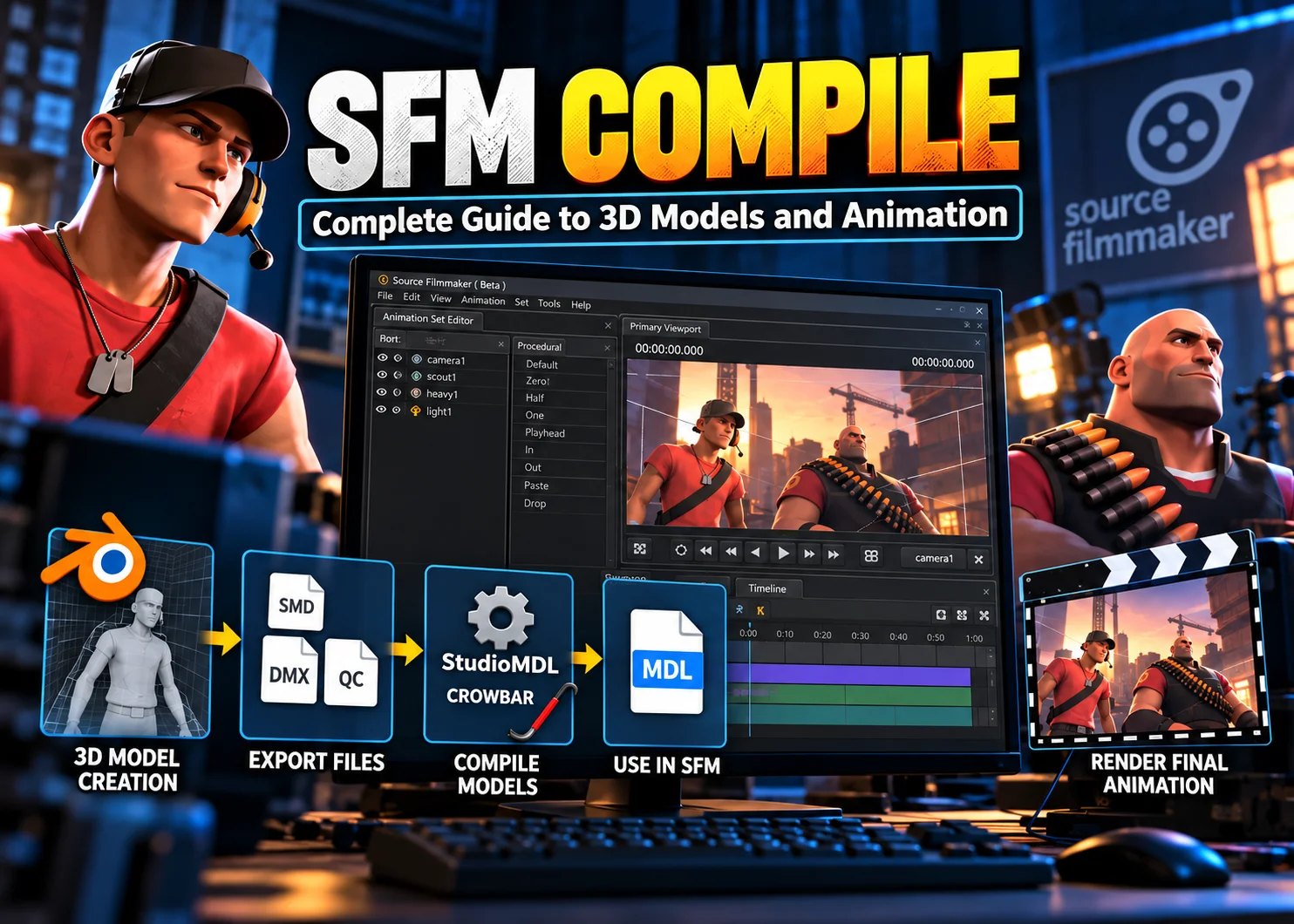
What Is SFM Compile?
SFM Compile refers to the process of preparing and converting custom assets into formats that work inside Source Filmmaker (SFM). It is an important part of creating custom characters, props, weapons, environments, and other visual elements for animated projects. Source Filmmaker uses Valve’s Source engine, which relies on particular file formats and asset structures. Because of this, you cannot always take a regular 3D model from Blender or another modeling program and immediately use it in an SFM project. The model needs to pass through a compilation process that prepares its geometry, materials, textures, skeleton, and animation information for the engine. This process helps transform a collection of separate development files into an asset that SFM can recognize and display.
For creators who want more control over their animations, learning how compilation works can make a significant difference. You might want to create a new character, modify an existing game model, build a custom weapon, or introduce a completely original object into a scene. In each situation, understanding the relationship between source files, QC scripts, and the model compiler makes the workflow easier to manage. Tools such as Crowbar simplify the process by providing a graphical interface for the actual Valve compiler. The result is a workflow that allows artists and developers to turn their creative ideas into usable Source engine assets.
Steam Community+2
Understanding Source Filmmaker
Source Filmmaker is a 3D animation and movie-making application developed by Valve. It allows creators to build scenes using characters, props, maps, lighting, cameras, and animation controls. Unlike traditional video editing software, SFM works with three-dimensional environments, meaning you can position objects, control character movements, adjust camera angles, and create cinematic scenes before rendering the final video.
The software has been popular among independent animators, gaming communities, machinima creators, and people who produce animated comedy videos. Its connection with games such as Team Fortress 2 and Half-Life 2 also gives users access to a large ecosystem of familiar characters, environments, and visual assets. However, creators are not limited to the assets included with the original software. They can introduce custom models and other compatible resources through a properly organized asset workflow.
This is where model compilation becomes important. A model created in Blender may contain geometry, an armature, materials, and textures, but SFM needs those resources in a format supported by its engine. Exporting and compiling the model helps bridge that gap. Once the asset has been prepared correctly, you can use it in an animation project alongside other Source engine resources.
Why Compilation Matters
Compilation is more than simply changing a file extension. It organizes different parts of a model and prepares them for the engine’s requirements. A custom character, for example, may contain a reference mesh, several animation sequences, a physics mesh, material definitions, and multiple textures. These elements need to be connected correctly so that the final character behaves as expected inside SFM.
Without a proper compilation workflow, you may encounter missing models, invisible materials, broken animations, incorrect scaling, or problems with the model’s skeleton. These issues can interrupt production and make even a simple animation project frustrating.
A successful compile provides several benefits:
-
Asset compatibility: Helps convert supported source files into formats that the Source engine can load.
-
Better organization: Connects model geometry, animation sequences, and material locations.
-
Custom creativity: Makes it possible to use original characters, props, and other assets.
-
Improved workflow: Allows creators to edit source files and recompile updated versions.
-
Animation support: Packages animation sequences into a model that SFM can use.
Think of compilation as preparing the ingredients before cooking. Every component has a purpose, but the final result depends on how everything is combined.
2. How the SFM Compile Process Works
The SFM compilation process involves several connected stages. First, an artist creates or edits a model using 3D software. Next, the model is exported into a compatible intermediate format, commonly SMD or DMX. A QC file then provides instructions describing how the compiler should assemble the asset. Finally, Valve’s StudioMDL compiler processes the instructions and creates the compiled model files.
Each stage has a specific responsibility. The modeling software handles the visual structure, the export process prepares the geometry and animation data, and the QC script describes how the Source engine should organize the asset. The compiler brings these elements together. If one stage contains an incorrect file path, incompatible skeleton, or missing resource, the final result may not work properly.
Understanding this process helps you identify problems instead of repeatedly trying random solutions. It also makes larger projects easier because you can divide complicated work into smaller tasks.
From Source Files to Finished Models
A custom model usually begins in a 3D application such as Blender, Maya, or 3ds Max. The artist creates the geometry, assigns materials, adjusts the scale, and prepares the skeleton if the model needs animation. After completing the design, the model is exported into an intermediate format supported by the Source engine workflow.
Two commonly used formats are:
-
SMD (Studiomdl Data): Stores model geometry, skeletal information, and animation data.
-
DMX (Data Model Exchange): Supports structured model and animation information used by compatible Source tools.
The exported files are then referenced inside the QC script. This script identifies which mesh should be used, where materials are located, and which animation sequences belong to the model. Once the instructions are ready, the compiler processes the project.
The final model generally includes an MDL file and supporting resources such as VVD and VTX files. A physics file may also be generated when collision information is included. These files work together rather than functioning as completely independent models.
Garry’s Mod Wiki+2
The Role of the StudioMDL Compiler
StudioMDL is the actual model compiler used in the traditional Source engine workflow. It reads the QC instructions and processes the referenced source files. Crowbar is commonly used as a graphical interface for running StudioMDL, but it is important to understand that Crowbar does not perform the underlying model compilation itself.
This distinction matters when troubleshooting. If Crowbar displays a compilation error, the issue may come from StudioMDL, the QC script, a missing source file, or an incorrectly configured game installation. Crowbar makes the process easier to control and provides useful logs, but it still relies on the appropriate compiler for the selected game.
For SFM projects, using the compiler associated with the correct Source engine installation is important. Different Source games can have different compiler versions and asset requirements. Selecting an unrelated compiler can lead to compatibility problems even when the model files appear correct.
Steam Community+1
3. Essential Tools for SFM Compile
A reliable compilation workflow requires a small collection of tools. You do not need an expensive professional workstation or a complicated collection of paid applications to begin creating custom assets. Several widely used tools are available free of charge, making the process accessible to beginners and experienced creators alike.
The most important tools include Source Filmmaker, Crowbar, Blender, Blender Source Tools, VTFEdit, and a text editor. Each application handles a different part of the process. Choosing compatible versions and configuring the correct installation directories is more important than simply installing every available tool.
| Tool | Main purpose | Typical use |
|---|---|---|
| Source Filmmaker | Animation and rendering | Testing compiled assets |
| Crowbar | Compiler interface | Compiling and decompiling models |
| Blender | 3D modeling | Creating and editing geometry |
| Blender Source Tools | Source asset import/export | Exporting SMD and DMX |
| VTFEdit | Texture conversion | Creating VTF textures |
| Notepad++ or VS Code | Text editing | Writing QC and VMT files |
| HLMV | Model inspection | Checking compiled models |
Crowbar and Model Compilation
Crowbar is one of the most useful applications for Source engine model creators. It provides a graphical interface for several tasks, including compiling, decompiling, viewing, and managing model files.
For beginners, its biggest advantage is simplicity. Instead of manually entering long command-line instructions every time you want to compile a model, you can select the QC file, choose the appropriate game configuration, set an output location, and start the process.
Crowbar also provides compilation logs. These logs are particularly valuable when something goes wrong because they can help identify missing files, invalid paths, and problems with the model’s instructions. Depending on your setup, the application can also support batch compilation, allowing multiple QC files to be processed without opening each one individually.
Before using Crowbar, configure the correct game installation. The application needs access to the relevant game information and compiler executable. For SFM, these paths normally point to the Source Filmmaker installation and its usermod game directory.
Steam Community+1
Blender, QC Files, and VTFEdit
Blender is a popular option for creating custom models because it provides powerful modeling, sculpting, rigging, and animation features. With the appropriate Source export tools, artists can prepare their work for use in the Source engine workflow.
However, Blender does not automatically make every model compatible with SFM. You must prepare the geometry, assign appropriate materials, check the armature, and export the required files. Incorrect bone weights or inconsistent skeleton structures can cause problems later.
QC files provide the instructions required by StudioMDL, while VTFEdit helps convert image textures into Valve Texture Format. Source materials also use VMT files, which describe how textures should appear in the engine. A model may compile successfully but still display incorrectly if its material definitions point to the wrong texture locations.
These applications perform different jobs, so it is useful to learn them individually before combining them into one complete workflow.
4. Understanding QC Files and Model Structures
QC files are among the most important elements of the SFM compile process. A QC file is a plain-text script containing instructions for StudioMDL. It tells the compiler where to find the source mesh, what the output model should be called, which materials folder to use, and which animation sequences should be included.
Think of a QC file as a construction blueprint. The 3D model provides the building materials, while the QC script tells the compiler how those materials should be assembled. A missing reference or incorrectly written command can prevent the compiler from producing the intended result.
Common QC commands include:
| QC command | Purpose |
|---|---|
$modelname |
Defines the output model path |
$body |
Identifies the model geometry |
$bodygroup |
Defines interchangeable model parts |
$cdmaterials |
Specifies the material directory |
$sequence |
Adds an animation sequence |
$surfaceprop |
Defines physical material properties |
$collisionmodel |
Specifies collision geometry |
$texturegroup |
Defines alternative material skins |
A model with multiple accessories might use bodygroups to allow users to switch certain parts on or off. A character with idle, walking, and running animations would include the appropriate sequence definitions. A prop that needs physical interaction may also require collision information.
One important detail is that the paths inside the QC file must match the actual source files and intended output locations. A small spelling difference can prevent the compiler from locating a resource. Using consistent folder names and checking every referenced filename before compilation can save considerable time.
Garry’s Mod Wiki+1
5. Step-by-Step Guide to Compiling Models in SFM
Once your tools are installed and your source files are prepared, you can begin compiling a custom model. The following workflow is suitable for a basic prop or character model. More advanced assets may require additional steps for physics, multiple animations, facial flexes, or alternative skins.
Step 1: Prepare the 3D model.
Open Blender or another compatible modeling application. Check the geometry, remove unnecessary objects, verify the model’s scale, and make sure the origin and orientation are appropriate. If the model uses a skeleton, inspect its bone hierarchy and vertex weights. A poorly prepared model can create problems that are difficult to identify after compilation.
Step 2: Export the source files.
Use a compatible Source export tool to export the model into SMD or DMX format. Export reference geometry and animation sequences as separate files when your project requires them. Keep the filenames organized because you will reference them later inside the QC script.
Step 3: Prepare the textures.
Convert the required image textures into VTF format using a compatible texture tool. Create the corresponding VMT material definitions and place everything in the correct materials directory. Check that the paths match the material directory specified in your QC file.
Step 4: Create the QC file.
Open a text editor and create a QC script. Add the appropriate model name, mesh references, material directory, and animation information. Make sure the filenames match the exported files exactly. Save the script in your project folder.
Step 5: Configure Crowbar.
Open Crowbar and select its Compile section. Choose the correct SFM compiler configuration. If the application cannot locate the compiler, configure the relevant installation paths manually. Avoid selecting a compiler from another game simply because it appears in the available list.
Step 6: Compile the model.
Select your QC file and choose an appropriate output location. Start the compilation and monitor the log. If the process completes successfully, inspect the generated files and verify that the expected model and supporting resources are present.
Step 7: Install and test the asset.
Place the compiled model files in the correct SFM models directory. Open Source Filmmaker and use the Model Browser to locate the asset. Check its appearance, textures, scale, skeleton, and animations before using it in a finished scene.
This final testing stage is essential. A successful compiler message confirms that the compilation process completed, but it does not guarantee that every part of the model behaves correctly inside an animation project.
SFM COMPILE+2
6. Common SFM Compile Errors and Their Solutions
Even experienced creators encounter compilation problems. Sometimes the compiler cannot locate a mesh, while other times the model compiles but displays incorrectly in SFM. The most effective troubleshooting method is to identify the earliest meaningful error in the compilation log and investigate its cause.
| Common problem | Possible reason | Suggested solution |
|---|---|---|
| Missing source file | Incorrect filename or path | Check QC references |
| Compiler not found | Incorrect installation path | Configure StudioMDL |
| Model not visible | Incorrect output directory | Check model installation |
| Purple or checkerboard textures | Missing VTF or incorrect VMT | Verify material paths |
| Broken animations | Skeleton mismatch | Compare reference and animation bones |
| Incorrect model scale | Export settings | Review units and scale |
| Compilation failure | Invalid QC command | Check syntax and log details |
One common issue is a missing file error. This usually happens when a QC script references an SMD or DMX file that does not exist in the expected directory. Check spelling, capitalization where relevant, folder names, and file extensions before changing anything else.
Another frequent problem involves textures. A model may appear with a checkerboard pattern because the engine cannot find its material or texture. In this situation, check the $cdmaterials directory, the VMT filename, and the texture path inside the VMT file. Remember that successful model compilation and successful material loading are separate things.
Animation problems often require more careful inspection. If the animation file uses a different skeleton from the reference mesh, the compiler may report bone-related errors or the model may move incorrectly. Re-exporting the reference mesh and animation with consistent skeleton settings is often the best starting point.
Finally, incorrect compiler configuration can cause confusing problems. Always verify that Crowbar is using the intended SFM compiler rather than an unrelated Source game compiler.
GitHub+2
7. Textures, Materials, and Lighting
A well-compiled model is only one part of a successful SFM asset. Its visual quality also depends on textures, materials, and lighting. A beautifully designed character can look unfinished if its texture files are missing or its material settings are incorrect.
Source engine materials generally use VMT files to describe surface appearance. These files reference texture resources and specify shader properties. The actual texture images are commonly stored in VTF format. This separation allows creators to adjust material behavior without rebuilding the entire model.
For example, a metal object may need reflective-looking material properties, while a character’s skin requires a different appearance. A wooden prop needs suitable color and surface detail. Selecting the correct material settings helps create a more believable result.
Lighting is another important consideration. Even a technically correct model can look flat if it is placed in a poorly illuminated scene. SFM gives creators control over light placement, intensity, color, and shadows. By experimenting with these settings, you can make custom assets look more natural and consistent with the rest of your environment.
A useful approach is to test textures and lighting separately. First, confirm that every material loads correctly. Then place the model inside a simple scene and experiment with lighting. This makes it easier to distinguish asset problems from scene-rendering problems.
typehuman.com+1
8. Improving SFM Compile Performance
Compilation performance depends on the complexity of the asset, the compiler configuration, and the computer being used. A small prop usually takes less time to compile than a detailed character with several animations, multiple bodygroups, and complex collision geometry.
One practical way to improve efficiency is to keep your project organized. Use descriptive filenames and separate folders for exported meshes, textures, QC scripts, and compiled assets. This reduces confusion when you need to update a particular part of the model.
You should also avoid unnecessary complexity. A prop that does not require animation may not need a complicated skeleton. A simple object may not need an elaborate collision mesh. Likewise, textures should have resolutions appropriate to their intended use rather than being unnecessarily large.
Another useful technique is incremental testing. Instead of building an entire complicated character before attempting the first compile, begin with a basic version. Compile the reference mesh, verify that it loads, and then gradually introduce additional animations, materials, and bodygroups.
This approach makes debugging much easier. When a problem appears immediately after adding a new feature, you have a smaller number of possible causes to investigate.
9. Advanced Compilation Techniques
Once you understand the basic workflow, you can explore more advanced features. These techniques are useful for creators who want to build detailed characters, customizable props, and complex animation assets.
Bodygroups and alternative skins: Bodygroups allow different model components to be enabled or disabled. This can be useful for characters with different outfits, accessories, helmets, or equipment. Texturegroups can provide alternative material appearances without requiring an entirely separate model for each variation.
Multiple animation sequences: QC scripts can define several animation sequences, such as idle, walking, running, jumping, and other actions. These sequences allow SFM users to work with a more versatile character. Every animation should be compatible with the model’s skeleton.
Collision models: Physics geometry helps define how an object interacts with physics-related systems. A collision mesh does not always need the same visual detail as the main model. Keeping collision geometry reasonably simple can make the asset easier to manage.
Level of detail: LOD techniques use lower-detail model versions at greater viewing distances where appropriate. This can help manage visual complexity in projects containing many objects.
Batch compilation: Crowbar supports compiling multiple QC files from a folder, which can be useful for projects containing numerous assets. Rather than processing every model individually, creators can organize their scripts and use batch operations to simplify repetitive work.
Steam Community+2
Working with Custom Characters and Props
Custom characters usually require more preparation than static props. They may contain complex skeletons, multiple materials, facial features, and several animation sequences. Every component needs to work together before the model becomes suitable for an animation project.
For a character, start by checking the reference mesh and skeleton. Then verify that animation files use compatible bone structures. Next, confirm that materials and facial features appear correctly. Finally, load the compiled character into SFM and test its movements using a simple animation.
Props are generally more straightforward, but they still require attention to scale, orientation, material paths, and collision settings. A custom chair, vehicle, weapon, or household object should appear at a sensible size relative to other assets.
The key is to treat each asset according to its purpose. A static decorative object does not need the same setup as a fully animated character.
10. Conclusion
SFM Compile is an important part of creating custom content for Source Filmmaker. It allows creators to prepare models, textures, animation sequences, and other resources so they can be used inside the Source engine environment. Although the process may initially seem complicated, understanding the relationship between SMD or DMX files, QC scripts, StudioMDL, and Crowbar makes it much easier to manage.
The best way to learn is through practice. Start with a simple prop, become familiar with the export process, and learn how to read compilation logs. Once you can successfully compile and test basic models, gradually move toward more advanced projects involving custom characters, bodygroups, animation sequences, and physics.
Remember that a successful compile is only the beginning. Testing your models inside SFM, checking materials, and correcting animation issues are equally important. With patience, good organization, and the right tools, you can build a collection of custom assets that expands your creative possibilities and helps bring your animation ideas to life.
Frequently Asked Questions (FAQs)
1. What does SFM Compile mean?
SFM Compile refers to preparing and converting custom models and other compatible assets into formats that Source Filmmaker can use. Model compilation commonly involves source geometry, QC scripts, and Valve’s StudioMDL compiler.
2. Is Crowbar necessary for SFM compilation?
Crowbar is not strictly necessary because StudioMDL can also be used directly. However, Crowbar makes the process easier by providing a graphical interface for selecting QC files, configuring compilers, and reviewing logs.
3. Which file formats are used in SFM Compile?
Common formats include SMD and DMX for source model and animation data, QC for compilation instructions, MDL for compiled models, VVD and VTX for supporting model data, and VTF and VMT for textures and materials.
4. Why does my compiled SFM model have missing textures?
Missing textures usually indicate an incorrect material path, a missing VTF file, or a VMT file that references the wrong texture. Check the $cdmaterials setting and verify that the required resources are installed in the correct folders.
5. Can beginners create custom SFM models?
Yes. Beginners can start by creating simple props in Blender, exporting them with compatible Source tools, preparing a basic QC file, and compiling through Crowbar. Starting with small projects makes learning the workflow much easier.
Additional Recommended SEO Headings
For further topical coverage, these related subtopics can also be included in future updates:
-
H2: SFM Compile vs. Other Source Engine Tools
-
H3: Differences Between SFM and Source 2 Filmmaker
-
-
H2: Best Practices for Managing Custom SFM Assets
-
H3: Organizing Models, Materials, and Animation Files
-
-
H2: Where to Find SFM Compile Tutorials and Resources
-
H3: Learning from the Source Filmmaker Community
-
Suggested SEO Metadata
| SEO element | Recommendation |
|---|---|
| Primary keyword | SFM Compile |
| SEO title | SFM Compile: Complete Guide to Models, Tools and Compilation |
| Meta description | Learn SFM Compile step by step. Discover Crowbar, QC files, StudioMDL, model conversion, textures, troubleshooting, and custom animation workflows. |
| URL slug | sfm-compile-guide |
| Search intent | Informational |
| Secondary keywords | Source Filmmaker compile, SFM model compilation, Crowbar compiler, QC files, StudioMDL |